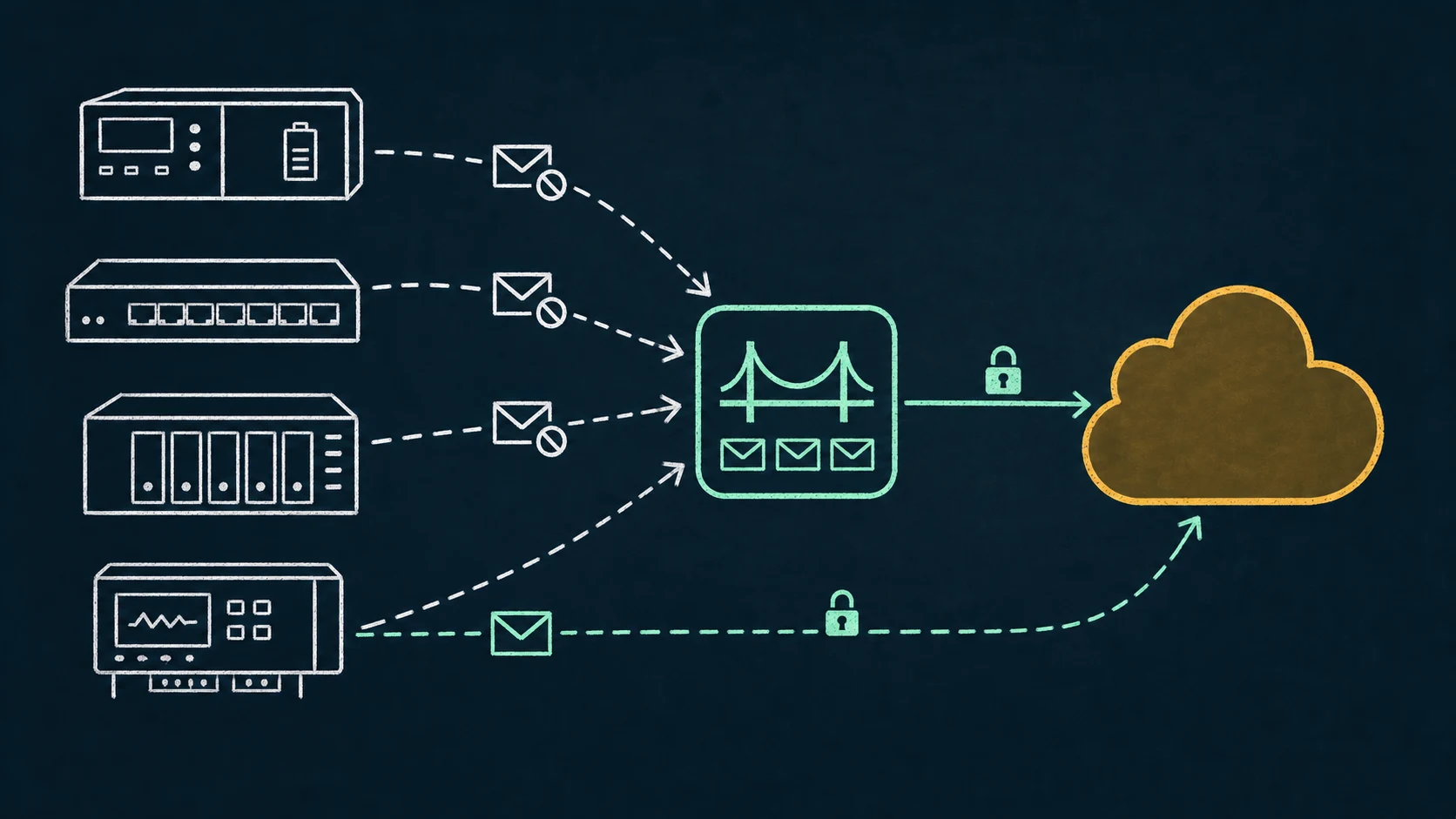
Immediate answer
Verify the exact model before adding a relay.
Modern versions of some appliances and software can authenticate to Microsoft 365 natively. If your exact model, firmware, edition, and license support a vendor-documented OAuth integration, prefer it. A compatibility relay is for equipment whose SMTP stack cannot meet the supported Microsoft authentication or mail-flow requirements.
Capability changes across firmware and product generations. “NAS,” “UPS,” or “monitoring appliance” is not a compatibility result. Verify the vendor’s current documentation for the exact deployed version.
When native OAuth is unavailable, the decision depends on recipient scope, network path, sender identity, TLS support, retry behavior, volume, and whether the appliance can trust a local endpoint.
Common legacy senders
The hard cases are usually embedded and rarely upgraded.
Typical candidates include older UPS and power-management cards, network switches and controllers, storage appliances, environmental monitors, access-control systems, industrial controllers, legacy monitoring servers, and other embedded devices with a small SMTP settings form.
These systems may support only a server name, port, sender, password, and a basic TLS toggle. Some cannot perform XOAUTH2; others lack current TLS versions, certificate trust, accurate time, Server Name Indication, or reliable retry. Each limitation points to a different remedy.
Capability checklist
Turn “supports email” into concrete requirements.
- 01
Record model, firmware, edition, and license
Use the vendor support matrix for that exact combination. An OAuth feature in a current product page does not prove an older deployed version has it.
- 02
Identify the actual authentication method
Look for Microsoft 365 OAuth or XOAUTH2, not only a generic “authentication” checkbox. Determine whether setup requires an app registration or vendor cloud service.
- 03
Verify the transport stack
Check STARTTLS mode, TLS 1.2 or later, certificate validation, current trust roots, DNS, accurate time, endpoint name, and port.
- 04
Test queue and retry behavior
Find out whether the appliance persists an alert across network interruption and how operators learn about final failure.
- 05
Define recipients and identity
Internal-only alerts, external recipients, delegated sender identity, and high-volume events can require different Microsoft 365 paths.
For TLS-specific failures, follow the TLS handshake evidence workflow; the same protocol layers apply beyond printers.
Neutral alternatives
Select the path that matches the appliance and tenant.
Vendor-native Microsoft OAuth
Use this first when officially supported for the exact version. Follow the vendor’s identity, permissions, certificate, and update guidance.
Vendor notification service or API
Some platforms provide their own alerting integration. Evaluate data handling, cloud dependency, sender control, licensing, and outage behavior.
Supported Microsoft 365 mail-flow option
Authenticated client submission, connector relay, Direct Send, and High Volume Email have different requirements. Compare external-recipient need, network identity, volume, and tenant security policy.
Existing local MTA
An already-operated, appropriately secured MTA may provide the necessary compatibility and queueing. Confirm its upstream Microsoft path remains supported.
SaaS SMTP relay
A managed service can support older SMTP clients, but introduces another mail-processing provider. Review privacy, residency, authentication, availability, and cost.
Local SMTP bridge
A purpose-built bridge can accept narrowly authorized local appliances and handle modern Exchange Online authentication and durable retry on their behalf.
The Microsoft 365 SMTP options comparison and Security Defaults guide cover mail-flow and policy boundaries in more detail.
Local compatibility
Where RelayBridge fits—and where it does not.
RelayBridge may fit older appliances that can submit conventional SMTP to a Windows host on the local network but cannot perform Microsoft OAuth. It restricts local intake, stores accepted messages in a durable local queue, and uses Exchange Online SMTP OAuth for delivery. It does not route mail through a RelayBridge-operated cloud service.
That model can preserve alerts through a short upstream outage, but it cannot repair an appliance that never retries before local acceptance, bypass Microsoft limits, or override tenant policy. See the local queue architecture and security boundary.
Evaluate RelayBridge as independent infrastructure: Microsoft does not supply, endorse, or certify it. The RelayBridge-owned implementation is public under MPL-2.0 for direct review.
Do not add RelayBridge when the exact appliance supports vendor-native OAuth, a vendor API is the approved path, another supported Microsoft option fits directly, or an existing MTA already provides the required controls.
Migration checklist
Protect alerts from silent failure.
- 01
Inventory every appliance
Record owner, location, model, firmware, source IP, sender, recipients, alert types, and escalation impact.
- 02
Check vendor-native support first
Verify current official documentation for the deployed version and test token renewal and failure reporting.
- 03
Choose and constrain the mail path
Allow only intended sources, senders, and recipients; keep the listener local; and avoid anonymous reachability from untrusted networks.
- 04
Test realistic alerts
Exercise normal events, attachments, multiple recipients, expired credentials, broken DNS, upstream outage, queue restart, and throttling.
- 05
Monitor the monitoring path
Alert on queue age, authentication failure, certificate problems, and final rejection through a channel that does not depend solely on the same email path.
Clarifications
Frequently asked questions.
Do all older appliances require an SMTP relay?
No. Some products can be upgraded to a version with native OAuth, and some environments can use another supported Microsoft mail-flow method directly.
Is “TLS enabled” enough for Microsoft 365?
No. Protocol version, cipher compatibility, certificate validation, trust roots, endpoint name, time, and STARTTLS behavior all matter.
Should all devices share one mailbox?
Not automatically. Shared identity concentrates permissions, quotas, audit scope, and blast radius. Design identities and sender authorization according to your operational and security requirements.
Authoritative sources
References.
- Microsoft Learn: Set up a device or application to send email using Microsoft 365
- Microsoft Learn: Authenticate SMTP using OAuth
- Microsoft Learn: Enable or disable SMTP AUTH in Exchange Online
- Microsoft Learn: Exchange Online uses TLS to secure email connections
- Microsoft Learn: Fix issues with devices and LOB applications that send email using Microsoft 365