Compatibility is negotiated
A printer can truthfully advertise “TLS support” and still fail against smtp.office365.com. It may support only an obsolete protocol, offer no currently accepted cipher, use implicit TLS on the wrong port, or reject the service certificate because its clock or trust store is stale.
TLS is not one feature switch
The handshake is a negotiation between two implementations. The printer proposes protocol versions, cipher suites, extensions, and other parameters. The service selects a compatible combination and presents a certificate. If there is no overlap—or the client cannot validate the result—the connection ends before SMTP authentication.
This is why a generic “authentication failed” message on a device can be misleading. First prove the TCP and TLS layers; only then investigate OAuth, credentials, SMTP AUTH controls, or sender authorization.
Port 587 expects SMTP followed by STARTTLS
Microsoft recommends smtp.office365.com on TCP port 587 for client SMTP submission. The client opens a plain SMTP connection, receives the server greeting, issues EHLO, sees the STARTTLS capability, and upgrades that connection to TLS before authenticating.
Implicit TLS attempts to begin the TLS handshake immediately. Microsoft’s device guidance warns that software defaulting to port 465 does not support the required client-submission TLS mode. Printer menus may label STARTTLS as TLS, explicit TLS, or “use secure connection after connect,” so check the vendor documentation.
Exchange Online requires a modern TLS version
Microsoft’s current client-submission guidance requires TLS 1.2 or TLS 1.3. TLS 1.0 and TLS 1.1 are deprecated across Microsoft 365. Exchange Online retains a separate opt-in smtp-legacy.office365.com endpoint for specific SMTP AUTH legacy-client scenarios, but Microsoft describes those older versions as unsupported.
Firmware release notes are more reliable than a settings-page label. Confirm the exact protocol version used by the SMTP client component; a device may support TLS 1.2 for its web administration interface while its scan-to-email module uses an older embedded library.
The legacy endpoint can preserve a transition path, but it does not modernize the device. Treat it as an explicit risk exception with an exit plan, not proof that obsolete TLS remains a recommended design.
TLS 1.2 still needs cipher-suite overlap
Supporting TLS 1.2 is necessary but not sufficient. Microsoft 365 currently documents two TLS 1.3 AES-GCM suites and four TLS 1.2 ECDHE-RSA suites using AES-GCM or AES-CBC with SHA-256/384. Microsoft has removed older weak options such as 3DES and non-forward-secret RSA key exchange.
| Protocol | Documented Microsoft 365 cipher suites |
|---|---|
| TLS 1.3 | TLS_AES_256_GCM_SHA384TLS_AES_128_GCM_SHA256 |
| TLS 1.2 | TLS_ECDHE_RSA_WITH_AES_256_GCM_SHA384TLS_ECDHE_RSA_WITH_AES_128_GCM_SHA256TLS_ECDHE_RSA_WITH_AES_256_CBC_SHA384TLS_ECDHE_RSA_WITH_AES_128_CBC_SHA256 |
A printer that offers only static-RSA, 3DES, RC4, SHA-1-era, or export suites can therefore advertise TLS 1.2 yet fail to negotiate. Capture the actual ClientHello or ask the vendor for the SMTP client cipher list.
Certificate validation, DNS, and device time matter
After the server selects a protocol and cipher, the client validates the certificate chain and service name. Legacy devices commonly fail because their CA bundle is old, a required intermediate certificate is missing, their real-time clock is wrong, or firmware cannot validate the certificate’s current signature chain.
Use the DNS name smtp.office365.com, not a pinned IP address. Microsoft’s service addresses and certificates can change. Verify that the printer has working DNS, NTP or manually maintained time, an updateable trust store, and no TLS-inspection appliance substituting a certificate the device does not trust.
A successful certificate check proves only the encrypted channel. It does not grant SMTP AUTH, authorize a sender, or guarantee message acceptance.
What SNI can—and cannot—tell you
Server Name Indication carries a requested host name inside the TLS ClientHello. Modern diagnostic tools can send SNI explicitly, and packet capture can reveal whether a client included it.
However, Microsoft’s current SMTP client-submission guidance identifies the required DNS name, STARTTLS mode, TLS versions, and supported ciphers; it does not identify missing SNI as the universal cause of legacy printer failures. Do not infer an SNI defect from a generic handshake error alone. Compare a working and failing ClientHello or obtain a vendor statement for the exact firmware.
SNI is one observable handshake field, not a diagnosis by itself. Version, cipher, certificate validation, STARTTLS mode, and network interception are usually faster checks.
Practical tests from the same network
1. Test TCP reachability
Test-NetConnection smtp.office365.com -Port 587
A successful result proves DNS and TCP reachability only. It does not test STARTTLS, certificate validation, or authentication.
2. Test SMTP STARTTLS with OpenSSL
openssl s_client -starttls smtp -connect smtp.office365.com:587 -servername smtp.office365.com -tls1_2
Review the negotiated protocol, cipher, certificate chain, and verification result. The -servername argument sends SNI explicitly for this controlled test. Run it from the printer’s actual network segment when possible.
3. Compare with device evidence
If the controlled test succeeds and the printer fails, collect the printer firmware version, timestamped SMTP log, packet capture, and vendor cipher documentation. If both fail, investigate DNS, firewall, TLS inspection, or the site egress path before changing Exchange settings.
How RelayBridge moves the TLS boundary
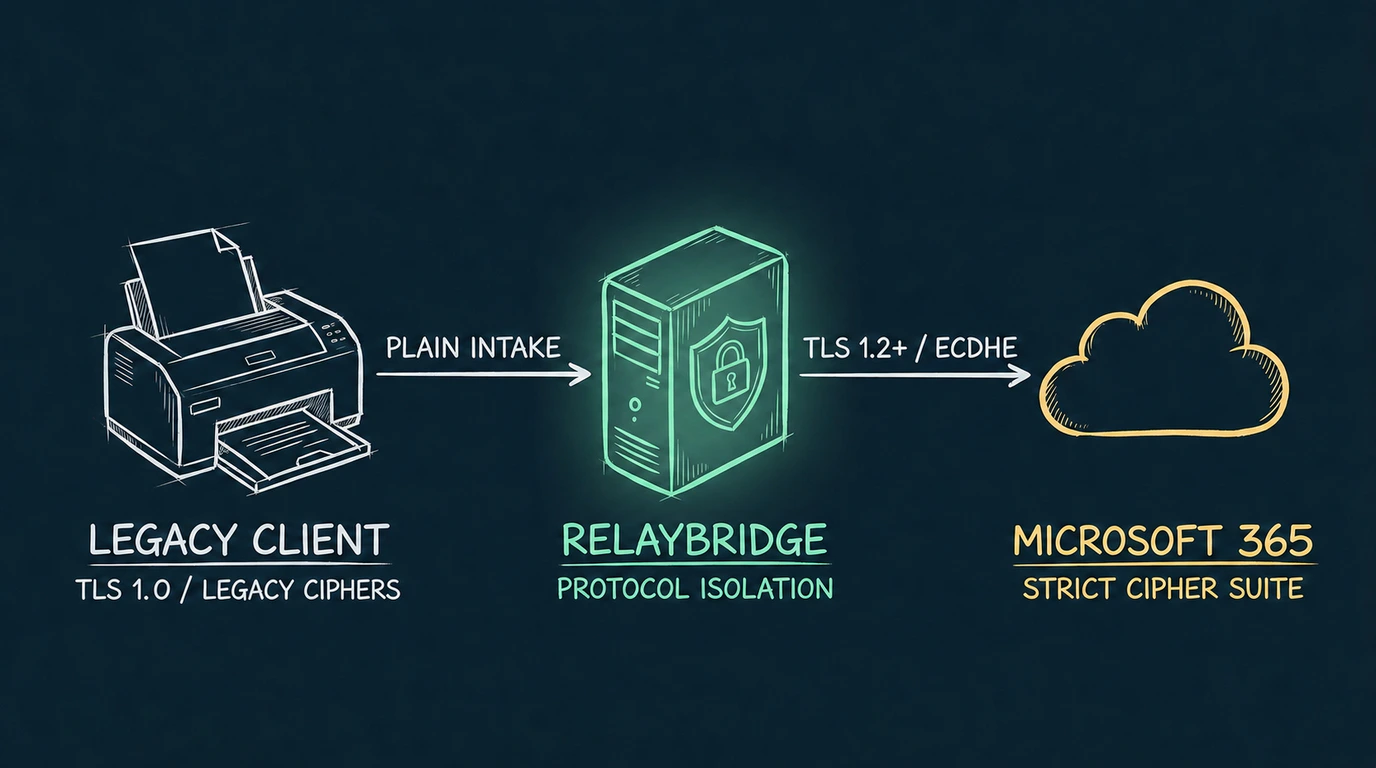
RelayBridge is designed for devices that can submit ordinary SMTP locally but cannot negotiate the modern Microsoft 365 path. It accepts from explicitly configured local sources, durably queues the message, and creates a separate upstream connection to Exchange Online using current TLS, OAuth, and XOAUTH2.
The printer is not upgraded and the two connections do not share a TLS session. RelayBridge owns the upstream cryptography and token flow; the device retains its narrow local SMTP behavior.
Inbound STARTTLS is not currently available. That means the local device-to-RelayBridge hop must be confined to a trusted private network with explicit source and sender restrictions. This tradeoff is documented in the current Microsoft 365 security model. RelayBridge remains pre-release.
Remediation checklist
- 01
Update firmware first
Use a maintained vendor release and confirm the SMTP module—not only the web UI—supports TLS 1.2 or later.
- 02
Use the correct mode
Configure
smtp.office365.com, port 587, and STARTTLS rather than implicit TLS on port 465. - 03
Check cipher overlap
Verify the device offers at least one cipher currently documented by Microsoft 365.
- 04
Repair trust and time
Update CA certificates, correct DNS and clock settings, and identify any TLS-inspection certificate substitution.
- 05
Choose a supported alternative
If firmware cannot meet the boundary, evaluate another Microsoft mail-flow option, a controlled local bridge, or device replacement.
Frequently asked questions
Is enabling “TLS” on a printer enough?
No. Confirm STARTTLS mode, exact protocol version, cipher suites, certificate validation, DNS, and device time.
Which TLS versions does Microsoft 365 client submission require?
Microsoft’s current guidance requires TLS 1.2 or TLS 1.3 for client SMTP submission.
Why is port 465 a warning sign?
Port 465 commonly indicates implicit TLS. Microsoft documents port 587 with STARTTLS for client submission and warns that a device defaulting to 465 does not support the required mode.
Does Exchange Online SMTP require SNI?
Microsoft’s current client-submission guidance does not present missing SNI as a universal requirement or diagnosis. Capture the handshake and verify the exact firmware rather than assuming.
Can RelayBridge accept TLS from the printer?
Not currently. Inbound STARTTLS is unavailable, so local intake must remain restricted to configured devices on a trusted private network.
Official Microsoft references
- Microsoft Learn — Set up a multifunction device or application to send email using Microsoft 365
- Microsoft Learn — Fix issues with printers, scanners, and LOB applications
- Microsoft Learn — Technical reference details about Microsoft 365 encryption and cipher suites
- Microsoft Learn — How Exchange Online uses TLS to secure email connections
- Microsoft Learn — Opt in to the Exchange Online endpoint for legacy TLS clients