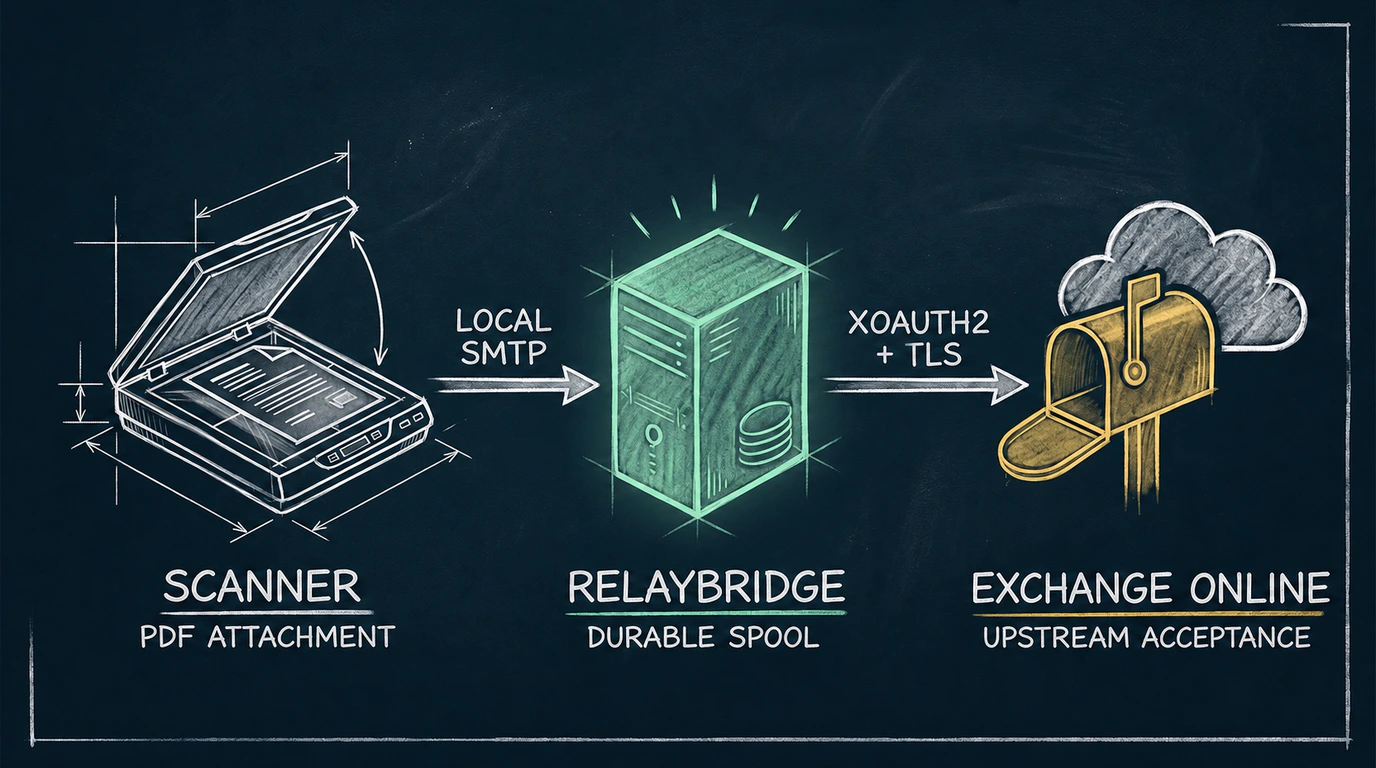
Start with the boundary
Scan-to-email is a chain of separate operations: capture a document, construct an email, submit it to an SMTP service, authenticate upstream, and let Microsoft 365 process delivery. The failure point is often between the scanner’s legacy SMTP client and Exchange Online’s modern identity requirements.
Why scan-to-email becomes difficult
Many scanners and multifunction printers were built when a mailbox username and password were enough for outbound SMTP. The device may still scan perfectly and generate a valid MIME attachment, yet be unable to obtain an OAuth token, present it through XOAUTH2, or negotiate a current TLS version.
The visible symptom is usually blunt—an authentication error, connection failure, or generic “send failed” message. Diagnosing it requires separating document creation, local network reachability, SMTP dialogue, authentication, upstream acceptance, and final delivery. The Exchange Online SMTP error guide maps common responses to those stages.
The old SMTP model
A typical legacy configuration asks for an SMTP server, port, sender address, and perhaps a username and password. Some devices support STARTTLS; others support only older protocol versions or no encryption at all. The device treats the mail server as a stable endpoint and repeats the same stored credentials for every submission.
That simplicity is useful inside a narrow, controlled network, but it does not supply the token lifecycle and application identity expected by a modern cloud service. “Supports scan to email” therefore says little about whether the device can connect directly to Microsoft 365 today.
The modern Microsoft authentication model
Microsoft documents OAuth support for SMTP in Exchange Online. In the app-only model relevant to a background service, a Microsoft Entra application can use the OAuth 2.0 client credentials flow to obtain an access token for Exchange. The SMTP client then sends that token using SASL XOAUTH2 rather than submitting a mailbox password.
For authenticated client SMTP submission, Microsoft documents the smtp.office365.com endpoint, port 587 as the recommended port, and TLS 1.2 or later. Exchange settings still govern whether SMTP AUTH is available, and authorization must permit the intended sender. OAuth modernizes authentication; it does not remove Exchange mail-flow policy or sender authorization.
Why firmware support matters
A scanner cannot acquire and use an OAuth token merely because its SMTP settings page has an “authentication” checkbox. Native support requires a compatible flow, correct resource and scope handling, token renewal, XOAUTH2 formatting, and suitable TLS. Those functions must exist in the device firmware or in another system acting on its behalf.
When evaluating a device, check the exact model, firmware release, authentication methods, TLS versions, certificate validation behavior, and vendor documentation. Avoid assuming that a newer model in the same family represents the one installed on site.
The local-bridge architecture
A local bridge gives the scanner a nearby SMTP endpoint that matches its limited client capabilities. The bridge validates the submitting device against local policy, accepts the message only after reaching its durability boundary, and handles the Microsoft-facing connection separately.
This architecture is a compatibility boundary, not a claim that the local device has gained OAuth support. It also does not imply encryption on the scanner-to-bridge hop: RelayBridge inbound STARTTLS is not currently available.
Message flow
- 01
The device creates the message
The scanner captures the document, creates the attachment and message headers, and opens an SMTP session to the configured local endpoint.
- 02
The bridge applies the local intake boundary
The submission must match explicitly configured device and sender restrictions. The bridge persists accepted mail and queue metadata locally before treating the message as durably accepted.
- 03
The bridge authenticates upstream
RelayBridge’s intended Microsoft 365 model uses certificate-based application identity to obtain an Exchange token, then XOAUTH2 over a TLS-protected SMTP connection.
- 04
Exchange Online returns an SMTP result
Temporary failures remain queued for retry. A successful final SMTP 250 response means Microsoft accepted the message at the SMTP boundary; it is not proof of inbox placement.
- 05
Microsoft 365 continues processing
Filtering, transport rules, routing, moderation, quarantine decisions, and recipient delivery happen after acceptance. Exchange message trace can show later service events.
Security considerations
The local bridge should be treated as mail infrastructure, not as an unrestricted LAN utility. Only explicitly configured devices should be able to submit. The listener should be reachable only from the intended trusted private network segment, and host access, local queue storage, logs, certificate private keys, and configuration all require administrative protection.
Inbound: device-to-RelayBridge STARTTLS is not available today. Outbound: RelayBridge-to-Exchange Online uses modern authenticated SMTP with TLS.
That local unencrypted hop may be acceptable in a deliberately designed private network; it should not be generalized as safe for any LAN. Review the current Microsoft 365 security model before evaluating the architecture.
What RelayBridge changes
RelayBridge is intended to change the upstream authentication and delivery boundary. It accepts local SMTP from allowed devices, queues messages durably, obtains Microsoft tokens using certificate-based application identity, and submits to Exchange Online using OAuth, XOAUTH2, and TLS. Scoped Exchange Application RBAC is designed to constrain the authorized sender.
What RelayBridge does not change
It does not upgrade scanner firmware, encrypt the current local intake hop, operate a hosted relay, bypass Microsoft filtering, or guarantee inbox placement. It does not remove the need to configure Exchange authorization correctly or to secure the network and host on which it runs. The broader RelayBridge architecture explains these responsibilities.
Current limitations and release status
RelayBridge remains an unsigned pre-release. The v1.0.0-rc.1 Windows release candidate is available for evaluation and community testing, and the administrator documentation describes its released installation, Microsoft 365 setup, device, operations, and troubleshooting workflows. A signed stable release and broad device-specific compatibility matrix are not yet available.
RelayBridge source is public under MPL-2.0 and available in the source repository. The release-status page explains the current official Windows binary and verification details.
Frequently asked questions
Why did scan to email stop working after Microsoft 365 changes?
The device may still be attempting an authentication or TLS method that the configured Microsoft path no longer accepts. Check the exact failure, Exchange SMTP AUTH settings, device firmware capabilities, network egress, and current Microsoft requirements.
Does a scanner need OAuth support to send through Microsoft 365?
It needs a compatible supported path, but OAuth does not have to run on the scanner itself if a properly controlled local bridge performs modern authenticated delivery upstream.
Is SMTP AUTH the same as basic authentication?
No. SMTP AUTH is the SMTP authentication framework. Exchange Online supports modern authentication with OAuth through it, while older clients may implement only username-and-password methods.
Is the scanner-to-RelayBridge connection encrypted?
Not in the current RelayBridge design. Inbound STARTTLS is not available, so local intake must be restricted to explicitly trusted devices and a private network where that boundary is acceptable.
What happens if Exchange Online is temporarily unavailable?
RelayBridge is designed to retain accepted messages in its durable local queue and retry temporary failures. Final retry behavior will be documented with the public release.
Does an SMTP 250 response mean the scan reached the inbox?
No. It means Exchange Online accepted the message at the SMTP boundary. Filtering, quarantine, transport rules, routing, and delivery still follow. Use message trace to investigate those stages.
Official Microsoft references
- Microsoft Learn — How to set up a multifunction device or application to send email using Microsoft 365 or Office 365
- Microsoft Learn — Enable or disable authenticated client SMTP submission in Exchange Online
- Microsoft Learn — Authenticate an IMAP, POP or SMTP connection using OAuth
- Microsoft Learn — Message trace in the Exchange admin center in Exchange Online