The short version
Many printers and MFPs can compose a message and submit it over SMTP, but their firmware was designed for a username-and-password era. Microsoft 365 can accept authenticated SMTP with OAuth, while an older device may have no way to obtain a token or present it through XOAUTH2.
The compatibility problem
Scan-to-email often outlives the authentication model built into the device. An administrator may have a reliable printer with a simple SMTP settings page—server, port, sender, username, and password—but no OAuth client, certificate identity, token acquisition flow, or modern TLS implementation.
That creates two separate questions: can the device produce valid SMTP mail, and can it meet the current requirements of the upstream Microsoft 365 service? A device can succeed at the first and fail at the second.
Why older printers struggle with modern authentication
OAuth is more than a different password field. A client must be registered or represented in Microsoft Entra, obtain an access token for the correct Exchange resource, refresh or reacquire tokens when needed, and encode the token in the SMTP authentication exchange. Microsoft documents SASL XOAUTH2 as the mechanism used to carry that access token on an SMTP connection.
Printer firmware may expose “SMTP authentication” yet support only basic username-and-password authentication. That label describes the SMTP feature, not the authentication method inside it. Firmware age, vendor support, TLS capability, and the available configuration surface all matter.
What Microsoft 365 expects
For authenticated client SMTP submission, Microsoft documents smtp.office365.com, recommends TCP port 587, requires TLS 1.2 or later, and recommends modern authentication with OAuth. SMTP AUTH also has organization and mailbox controls, so the required Exchange configuration must intentionally allow the chosen submission path.
Microsoft 365 supporting OAuth for SMTP does not mean every SMTP-speaking printer supports OAuth. The upstream service and the device are separate capabilities.
Microsoft also documents other mail-flow categories for devices and applications, including connector-based SMTP relay, Direct Send, and High Volume Email. Each has different requirements and limits. The Microsoft 365 SMTP decision matrix compares them by recipients, sender identity, network egress, licensing, and sending volume.
Common approaches administrators consider
Update firmware or use native OAuth
If the device vendor provides maintained firmware with Microsoft-compatible OAuth and current TLS, native support removes the compatibility layer. Validate the exact model and firmware; a generic “SMTP” feature is not enough.
Use a Microsoft-supported mail-flow alternative
Connector-based relay, direct send, and other Microsoft services cover different scenarios. Review Microsoft’s current requirements rather than treating all “Office 365 relay” configurations as interchangeable.
Place a bridge on the trusted local network
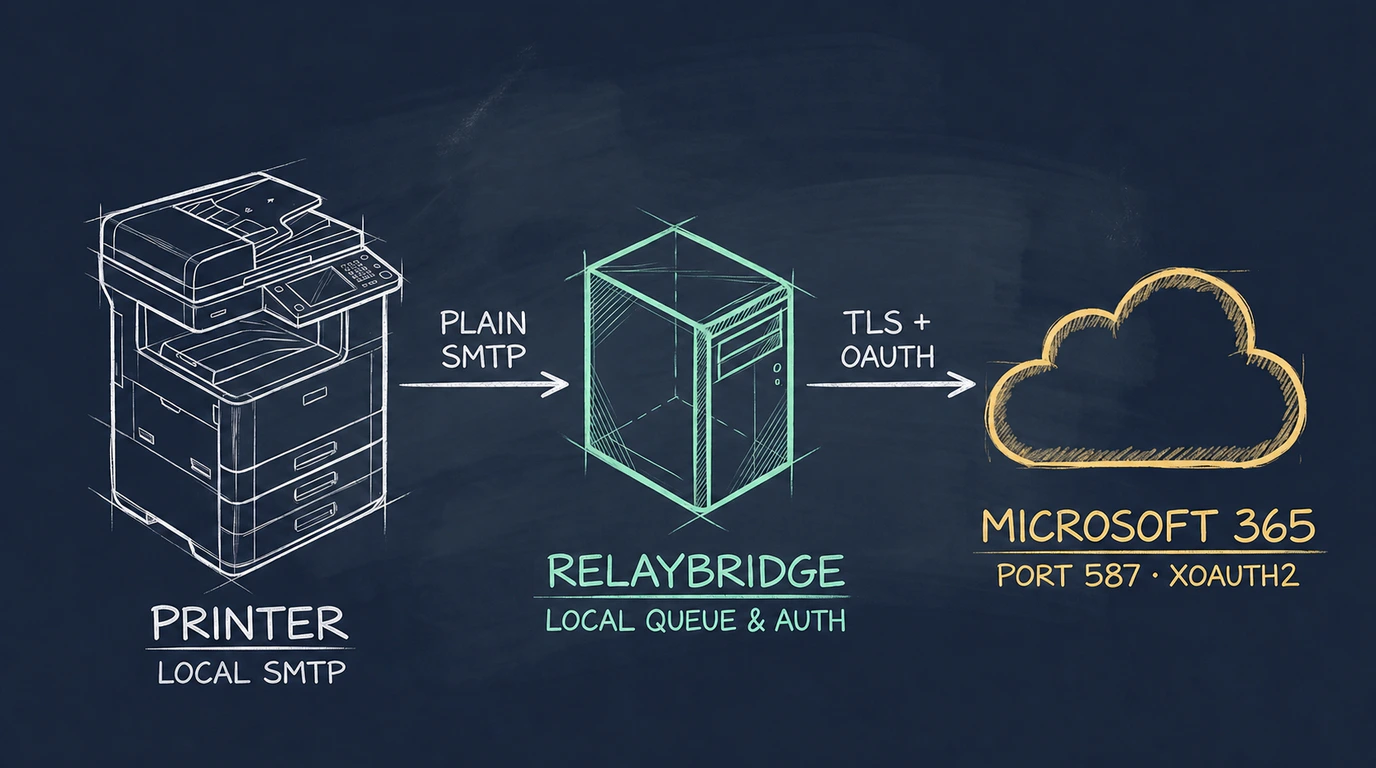
A local SMTP bridge can accept the simpler protocol the device already speaks, then perform modern authentication and encrypted delivery upstream. The bridge becomes an infrastructure component that must be constrained, monitored, patched, and backed by a durable queue.
Replace the device
Replacement may be appropriate when firmware, TLS, or vendor support is no longer defensible. It is not automatically required merely because the device cannot perform OAuth itself; the whole risk and operating model should drive that decision.
How a local SMTP bridge closes the gap
The bridge separates two protocol boundaries. On the local side, the printer submits an ordinary SMTP message to an explicitly configured service. On the upstream side, the bridge obtains a Microsoft access token, opens a TLS-protected connection to Exchange Online, authenticates with XOAUTH2, and submits the message.
This does not make the printer OAuth-aware. It moves the modern-authentication responsibility to software that can implement it correctly while leaving the device’s narrow SMTP function in place.
How RelayBridge approaches the problem
RelayBridge v1.0.0-rc.1 is a local-first compatibility bridge for Microsoft 365 / Exchange Online. It accepts mail only from explicitly configured local devices, persists accepted messages in a durable local queue, and delivers directly to Exchange Online using outbound TLS, OAuth, and XOAUTH2.
The Microsoft identity is certificate-based rather than a permanent client secret. Exchange Application RBAC scopes the Application SMTP.SendAsApp role to the configured sender boundary. RelayBridge does not operate a hosted SMTP relay, so mail is not routed through a RelayBridge-controlled cloud delivery service. See the full message flow for the architectural boundary.
Security boundaries
The two sides of the bridge do not currently have identical transport protection:
- RelayBridge → Exchange Online: modern authenticated SMTP over TLS.
- Printer → RelayBridge: inbound STARTTLS is not currently available.
Local SMTP intake must therefore be deployed only with explicit device restrictions on an administrator-controlled, trusted private network where that unencrypted hop is acceptable. It should not be described as safe on an arbitrary shared LAN. Network placement, address controls, sender restrictions, host security, and access to the local queue all form part of the boundary. The current Microsoft 365 security model documents these limitations in more detail.
Current RelayBridge limitations
RelayBridge source is public under MPL-2.0 and available in the source repository. The unsigned v1.0.0-rc.1 Windows release candidate and its administrator documentation are available for evaluation and community testing. A signed stable release and final platform compatibility matrix are not yet available.
No vendor-wide printer compatibility is claimed. Administrators will need to validate that a specific device can reach the local listener and produce the required message envelope and content. Follow the release-status page rather than treating this article as deployment instructions.
Frequently asked questions
Why can an older printer have trouble sending through Microsoft 365?
It may support SMTP but lack current TLS, OAuth token acquisition, or XOAUTH2. The printer’s message-generation feature can still work even though its upstream authentication method no longer fits the service. Use the TLS handshake guide when the connection fails before authentication.
Does Exchange Online SMTP support OAuth?
Yes. Microsoft documents OAuth for SMTP and the SASL XOAUTH2 format used to present an access token. Whether a specific printer implements those capabilities is a separate question.
Can every printer implement OAuth?
No. OAuth support depends on firmware and vendor design. Some devices cannot run the required flow or expose no way to configure it.
Do I necessarily need to replace a working printer?
Not solely because it lacks OAuth. Native firmware, a suitable Microsoft mail-flow option, or a controlled local bridge may be viable. Replacement can still be the right security or support decision for an obsolete device.
Can SMTP remain local between the printer and a bridge?
Yes, as an architecture pattern, but the local hop must be deliberately constrained. RelayBridge does not currently provide inbound STARTTLS, so its intake belongs on an explicitly trusted private network with configured device restrictions.
Does RelayBridge operate a hosted SMTP relay?
No. The intended path is from the local device to the administrator-controlled RelayBridge instance and then directly to Exchange Online.
What does Microsoft SMTP 250 mean?
A successful final SMTP 250 response means Exchange Online accepted the message at the SMTP boundary. It does not guarantee inbox delivery, filtering outcome, quarantine avoidance, downstream routing, or that a recipient read it. Exchange message trace is the appropriate next place to investigate later handling.
Official Microsoft references
- Microsoft Learn — How to set up a multifunction device or application to send email using Microsoft 365 or Office 365
- Microsoft Learn — Enable or disable authenticated client SMTP submission in Exchange Online
- Microsoft Learn — Authenticate an IMAP, POP or SMTP connection using OAuth
- Microsoft Learn — Message trace in the Exchange admin center in Exchange Online